> ## Documentation Index
> Fetch the complete documentation index at: https://docs.connect.fastenhealth.com/llms.txt
> Use this file to discover all available pages before exploring further.
# Quickstart
> Start collecting medical records in under 5 minutes
## Introduction
Let’s get you started with Fasten Connect!
This guide will walk you through the process of setting up your Fasten Connect account, configuring your API credentials, and requesting a patient's medical records.
You’ll need API keys, which you can receive by signing up in the [Developer Portal](https://portal.connect.fastenhealth.com).
We also have a NodeJS Quickstart repo available for customers that would like to jump straight into the code.
### Fasten Connect API Modes
The Fasten Connect API has two modes: `test` and `live`. Test mode is used for development and testing, while live mode is used for production.
Test mode secret keys have the prefix `private_test_` and live mode secret keys have the prefix `private_live_`.
| API Key Prefix | Description |
| --------------- | -------------------------------------------------------------------------------------------------- |
| `public_test_` | Test mode client-side key that uniquely identifies your app |
| `private_test_` | Test mode server-side key allows you to make authenticated requests. **Must be kept secret** |
| API Key Prefix | Description |
| --------------- | -------------------------------------------------------------------------------------------------- |
| `public_live_` | Live mode client-side key that uniquely identifies your app |
| `private_live_` | Live mode server-side key allows you to make authenticated requests. **Must be kept secret** |
### Create API Credentials
1. Sign up for a Fasten Connect account in the [Developer Portal](https://portal.connect.fastenhealth.com).
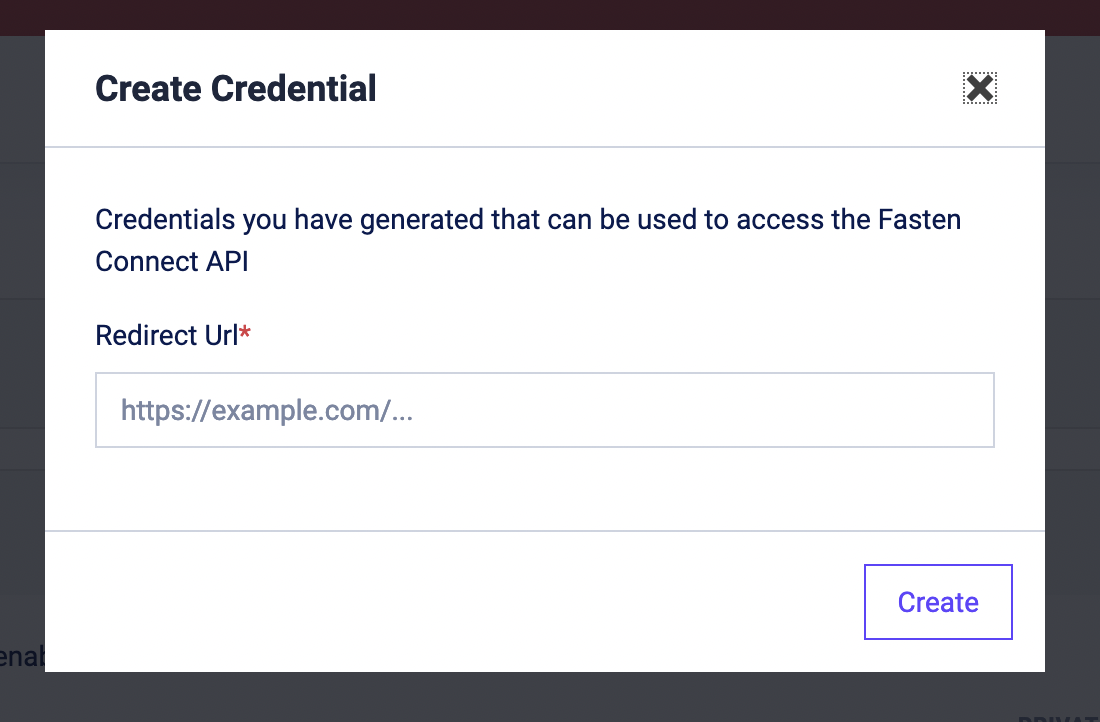
2. Click the Developer tab and then the `Create Credentials` button. You must provide a `Redirect URL`, which is the URL that Fasten Connect will redirect the user to after they have successfully linked their account.
3. Make note of the public id and private key generated for you. **The private key is only shown once, so make sure to save it in a secure location.**
### Webhook Configuration
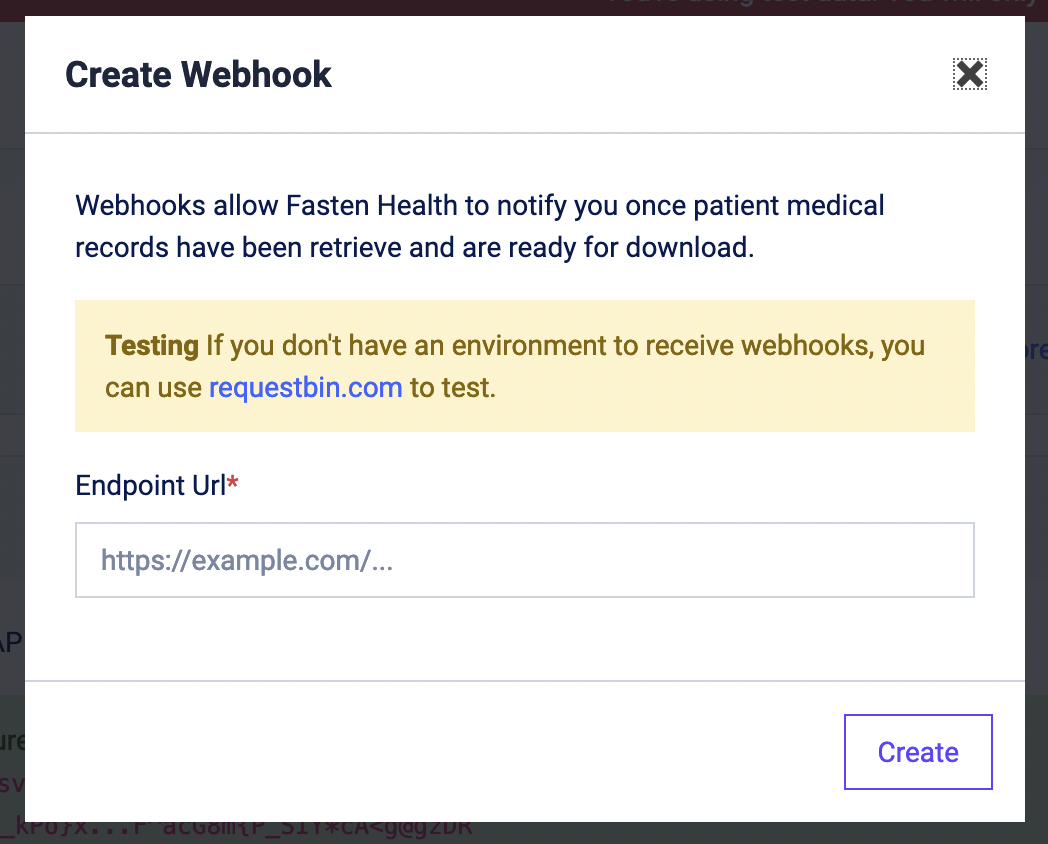
1. In the Developer Portal, click the `Create Webhook` button. You must provide a `Webhook URL`, which is the URL that Fasten Connect will send events to.
If you do not have a public URL to use, you can use a service like [smee.io](https://smee.io/) or [requestbin.com](https://public.requestbin.com/r) to create a temporary public URL for testing.
### Fasten Stitch configuration
[Fasten Stitch](/stitch/v4/introduction) is the client-side component that your users will interact with in order to link their
accounts to Fasten Connect and allow you to access their accounts via the Fasten Connect API.
To get started, you'll need to add the Fasten Stitch component to your website. You can do this by adding the following
code snippet to your website's HTML. Replace `public_test_123456324234234` with your own public key, which you can find
in the [Developer Portal](https://portal.connect.fastenhealth.com).
```md stitch.js theme={null}
```
The `fasten-stitch-element` HTML element will render a button that your users can click to link their accounts to Fasten Connect.
### Initial Connection
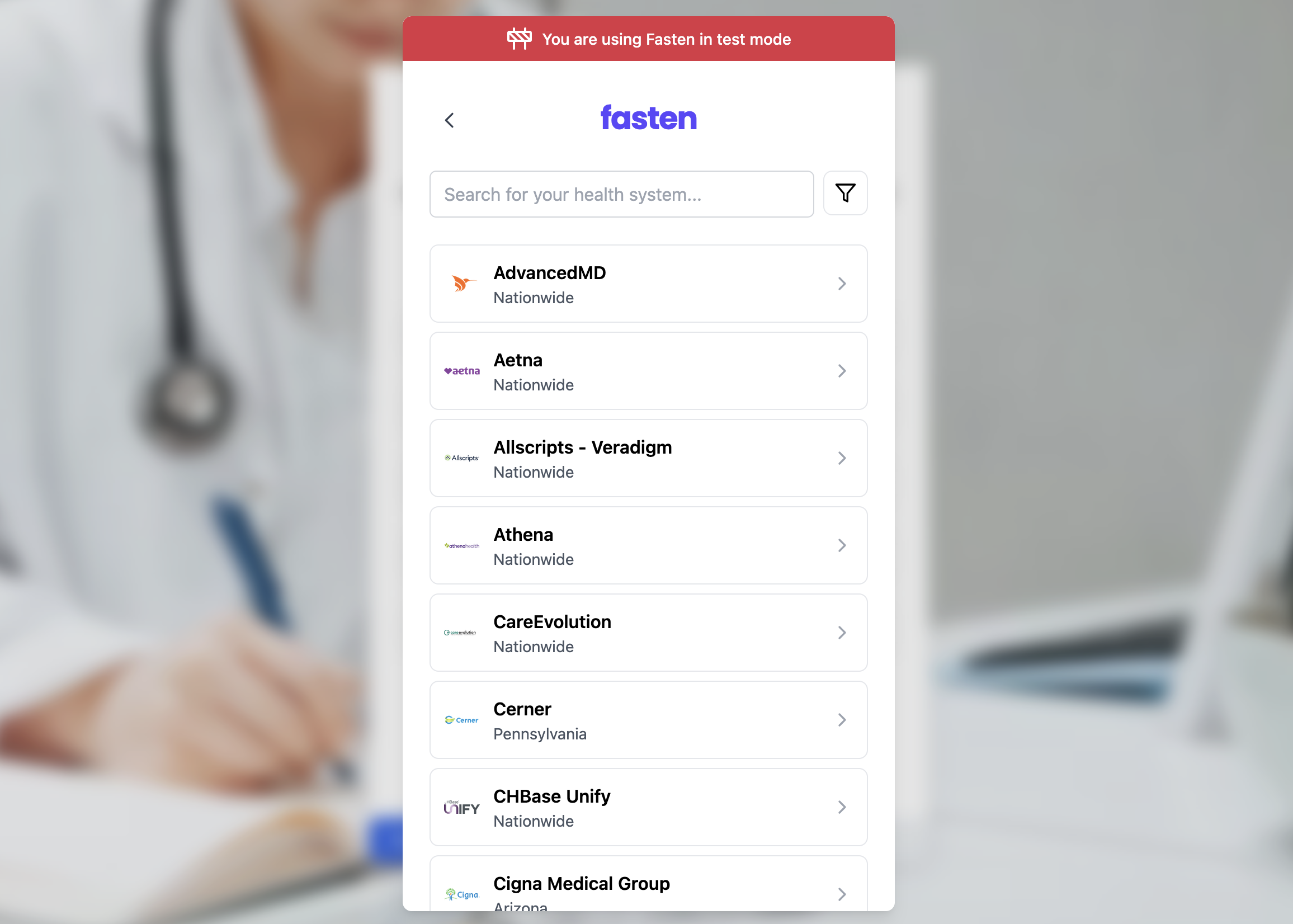
When the user clicks the button, they will be shown a search box and being the process to authenticate and authorize your app to access
their data.
#### Redirect to Patient Portal
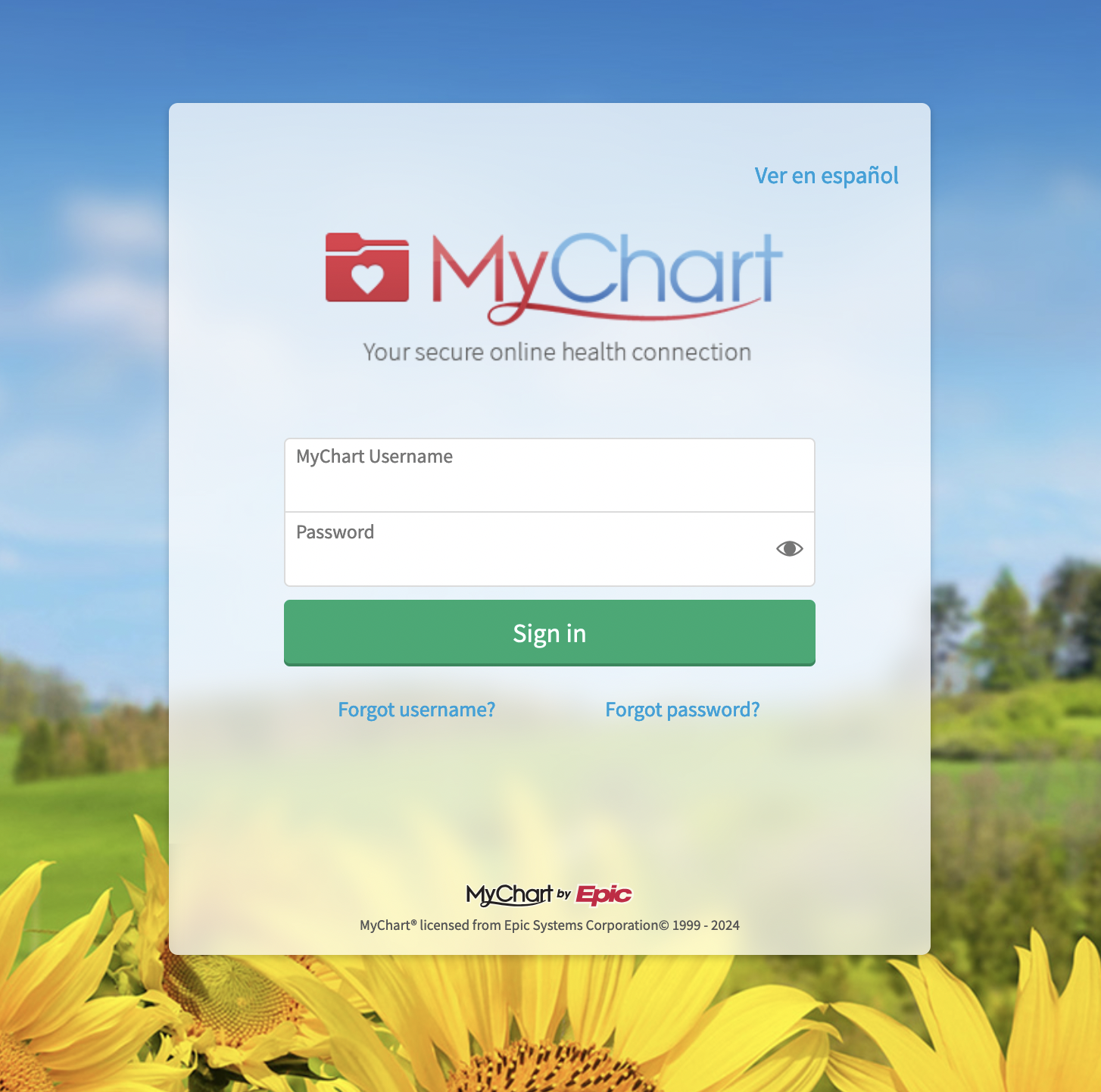
After selecting health system, and clicking "Sign In" you will be redirected to a patient portal where you can login with patient credentials (username + password).
#### Test Patient Credentials
In `test` mode, you can use the following credentials to test the Fasten Stitch component:
| Source | Credentials / Sandbox Status | Link |
| ---------------------------- | -------------------------------------------------------------------------------------------------- | ----------------------------------------------------------------------------------------------------------------------------------------------------- |
| AdvancedMD | Username: Password: | |
| Aetna | Username: `VTETestUser01` Password: `FHIRdemo2020` | [test accounts](https://developerportal.aetna.com/sandbox_v2_test_member_logins_and_test_data_v2.1.xlsx) |
| AllScripts | Username: Password: | |
| Anthem | Username: `HOSPatient` Password: `HOSPatient2023` | |
| AthenaHealth | Username: `phrtest_preview@mailinator.com` Password: `Password1` | [test accounts](https://docs.athenahealth.com/api/guides/onboarding-overview) |
| CareEvolution | Username: `CEPatient` Password: `CEPatient2018` | [test accounts](https://fhir.careevolution.com/TestPatientAccounts.html) |
| Cerner | Username: `nancysmart` Password: `Cerner01` | [test accounts](https://docs.google.com/document/d/10RnVyF1etl_17pyCyK96tyhUWRbrTyEcqpwzW-Z-Ybs/edit) |
| Cigna | Username: `syntheticuser05` Password: `5ynthU5er5` | [test accounts](https://developer.cigna.com/service-apis/patient-access/sandbox#How-to-Use-the-Sandbox-Sandbox-Test-Users) |
| DynamicHealthIT | Username: Password: | |
| eClinicalWorks/Healow | Username: `AdultFemaleFHIR` Password: `e@CWFHIR1` | [test accounts](https://connect4.healow.com/apps/jsp/dev/r4/fhirClinicalDocumentation.jsp#SandboxTestingGuidelines) |
| Epic | Username: `fhircamila` Password: `epicepic1` | [test accounts](https://fhir.epic.com/Documentation?docId=testpatients) |
| Flatiron/OncoEMR | Username: Password: | |
| HealthIT | Username: `demouser` Password: `Demouser1!` | [test accounts](https://fhirsandbox.healthit.gov/secure/r4/view/userlogin.html) |
| Humana | Username: `HUser00001` Password: `PW00001!` | |
| Kaiser | Username: `Pvaluser1` Password: `V@lidation1` | |
| Logica | Username: Password: | |
| MaximEyes | Username: Password: | |
| Medhost | Username: Password: | |
| Medicare | Username: `BBUser00000` Password: `PW00000!` | [test accounts](https://bluebutton.cms.gov/developers/#developer-guidelines) |
| Meditech | Username: Password: | |
| Netsmart | Username: Password: | |
| NextGen | Username: `patientapitest` Password: `Password1!` | [test accounts](https://www.nextgen.com/-/media/files/api/nge-patient-api-auth-guide.pdf) |
| PracticeFusion/PatientFusion | Username: Password: | |
| VA Health | Provider: ID.me Username: `va.api.user+101-2024@gmail.com` Password: `Password12345!!!` | [test accounts](https://developer.va.gov/explore/api/patient-health/test-users/3617/7058f75892b845dbbd3f371703cc066f398c336a87bb51d73128f1bac24e3105) |
Once the user has successfully linked their account, the `fasten-stitch-element` will generate a javascript event containing
information about connection. This payload will contain a `org_connection_id` identifier that
you can use to make requests to the Fasten Connect API.
### Parse Stitch.js Javascript Event Payload
Connection events will be sent to your frontend code via Javascript events.
The events can be handled by modifying the `eventBus` event listener in the code snippet above.
```html theme={null}
```
In your frontend code you must process the Stitch.js browser [Event](/stitch/v4/sdks/web-component/reference#patient-connection-success).
```json widget.complete Event theme={null}
{
"api_mode": "live",
"event_type": "widget.complete",
"data": [{
"org_connection_id": "fedec7b7-8cf6-4bc9-9058-72032b426473",
"endpoint_id": "8e2f5de7-46ac-4067-96ba-5e3f60ad52a4",
"brand_id": "e16b9952-8885-4905-b2e3-b0f04746ed5c",
"portal_id": "2727ec27-67e9-475a-bea1-423102beaa1d",
"connection_status": "authorized",
"platform_type": "epic"
}]
}
```
You must store the `data.org_connection_id` fields by sending it to your backend, as it is required for subsequent requests
to the Fasten API to request medical records for this individual patient.
You may also want to store the other fields for future reference, such as `endpoint_id`, `brand_id`, `portal_id` and `platform_type`.
Learn more about [Stitch.js Events](/stitch/v4/sdks/web-component/reference#widget-complete)
### Requesting Patient Bulk Export
Fasten Connect allows you to request a bulk export of a patient's medical records. To do this, you'll need to make a POST
request to the [`/bridge/fhir/ehi-export` endpoint](/api-reference/ehi_export/create) with the `org_connection_id` of the patient whose records you want to export.
This process is asynchronous, so you can wait for the webhook event to be sent to your webhook URL, or you can poll the
`/bridge/fhir/ehi-export/{org_connection_id}` endpoint to check the status of the export.
Request to the `/bridge/fhir/ehi-export` endpoint must be authenticated with your private key. Here's an example using `curl`:
```bash curl theme={null}
# Note: `-u` is shorthand for `--user` and can be used to avoid manually encoding the credentials, and passing the Authorization header.
curl -u 'public_test_123456324234234':'private_test_9u2orj....sd02lk3)i03423' \
-X POST \
--data '{"org_connection_id":"ebea708d-c5fa-4294-9051-da48ef08c78a"}' \
https://api.connect.fastenhealth.com/v1/bridge/fhir/ehi-export
```
Try it out yourself in the [API Playground](/api-reference/ehi_export/create).
### Async Webhook Event
When the export is complete, Fasten Connect will `POST` a [webhook event](/webhooks) to the URL you provided when creating the webhook.
The event will contain the `task_id` and the `download_links` of the export that was completed.
The export is only stored for 24h, so make sure to download the export as soon as you receive the webhook event.
```json webhook-event.json theme={null}
{
"api_mode": "test",
"type": "patient.ehi_export_success",
"date": "2024-04-03T17:16:40Z",
"id": "1b37cf9b-702f-4fd1-bb00-d0fd8e6dbc89",
"data": {
"download_links": [{
"url": "https://api.connect.fastenhealth.com/v1/bridge/fhir/ehi-export/fedec7b7-8cf6-4bc9-72032b426473/download/2024-06-12-6715-4ae4-bde5-ab97519bd1fa.jsonl",
"export_type": "jsonl",
"content_type": "application/fhir+ndjson"
}],
"task_id": "c9c7a91b66b34fdca749bb8e9cfbf617",
"org_id": "d65008f6-ffb1-4cd8-b868-c2de66fa5155"
}
}
```
Learn more about [Webhooks & Events](/webhooks)
### Downloading the Export
Once you recieve the webhook event, you can use the `download_links` to download the export. The export will be a JSONL file
containing the patient's medical records in FHIR format.
This method requires authentication with your private key. Make sure to keep your private key secure and do not expose it in your client-side code.
The download link will redirect to a signed URL that is only valid for a short period of time (10 minutes).
You can request a new signed URL by making another authenticated request to the [download endpoint](/api-reference/ehi_export/download).
```bash curl theme={null}
# Note: `-u` is shorthand for `--user` and can be used to avoid manually encoding the credentials, and passing the Authorization header.
# Note: The --location flag is used to follow redirects. Your http client must be able to follow the redirect and download the file from our blob storage (S3).
curl -o patient_bulk_export.jsonl \
-u 'public_test_123456324234234':'private_test_9u2orj....sd02lk3)i03423' \
--location \
https://api.connect-dev.fastenhealth.com/v1/bridge/fhir/ehi-export/c9c7a91b66b34fdca749bb8e9cfbf617/download/2024-04-03-098c09ef-887d-4aad-886c-d3ffd11750da.jsonl
```
View Patient EHI Export Example
[Click here](https://gist.github.com/AnalogJ/1fe4b4da2878dc021f6f4fe6538ee37f) to download an example EHI Export file in JSONL format.
It was previously generated via the Fasten Connect API and contains medical records from the Epic Sandbox in FHIR format.
## TEFCA Mode
Now that you have completed the Quickstart Guide you can (optionally) enable TEFCA-mode with a single line change.
When TEFCA mode is enabled, developers can access medical records without requiring the patient to search for their healthcare providers, or login to multiple portal logins.
Instead the patient is prompted to verify their identity and Fasten Connect will automatically retrieve their medical records from any healthcare institution that participates in the TEFCA network.
 3. Make note of the public id and private key generated for you.
  ### Webhook Configuration
1. In the Developer Portal, click the `Create Webhook` button. You must provide a `Webhook URL`, which is the URL that Fasten Connect will send events to.
### Webhook Configuration
1. In the Developer Portal, click the `Create Webhook` button. You must provide a `Webhook URL`, which is the URL that Fasten Connect will send events to.
 If you do not have a public URL to use, you can use a service like [smee.io](https://smee.io/) or [requestbin.com](https://public.requestbin.com/r) to create a temporary public URL for testing.
### Fasten Stitch configuration
[Fasten Stitch](/stitch/v4/introduction) is the client-side component that your users will interact with in order to link their
accounts to Fasten Connect and allow you to access their accounts via the Fasten Connect API.
To get started, you'll need to add the Fasten Stitch component to your website. You can do this by adding the following
code snippet to your website's HTML. Replace `public_test_123456324234234` with your own public key, which you can find
in the [Developer Portal](https://portal.connect.fastenhealth.com).
```md stitch.js theme={null}
If you do not have a public URL to use, you can use a service like [smee.io](https://smee.io/) or [requestbin.com](https://public.requestbin.com/r) to create a temporary public URL for testing.
### Fasten Stitch configuration
[Fasten Stitch](/stitch/v4/introduction) is the client-side component that your users will interact with in order to link their
accounts to Fasten Connect and allow you to access their accounts via the Fasten Connect API.
To get started, you'll need to add the Fasten Stitch component to your website. You can do this by adding the following
code snippet to your website's HTML. Replace `public_test_123456324234234` with your own public key, which you can find
in the [Developer Portal](https://portal.connect.fastenhealth.com).
```md stitch.js theme={null}
 #### Redirect to Patient Portal
After selecting health system, and clicking "Sign In" you will be redirected to a patient portal where you can login with patient credentials (username + password).
#### Redirect to Patient Portal
After selecting health system, and clicking "Sign In" you will be redirected to a patient portal where you can login with patient credentials (username + password).
 #### Test Patient Credentials
In `test` mode, you can use the following credentials to test the Fasten Stitch component:
#### Test Patient Credentials
In `test` mode, you can use the following credentials to test the Fasten Stitch component: