> ## Documentation Index
> Fetch the complete documentation index at: https://docs.connect.fastenhealth.com/llms.txt
> Use this file to discover all available pages before exploring further.
# Webhook Debugging & Simulator
Fasten Connect provides two tools to help developers test and debug webhook integrations: **Delivery Logs** and the **Webhook Simulator**.
Together, these make it easier to confirm that your endpoints are configured correctly and to troubleshoot issues quickly.
***
## 1. Webhook Delivery Logs
The **Delivery Logs** page shows a history of recent webhook events Fasten attempted to deliver to your endpoint.
Delivery logs are only available for the last 15 days.
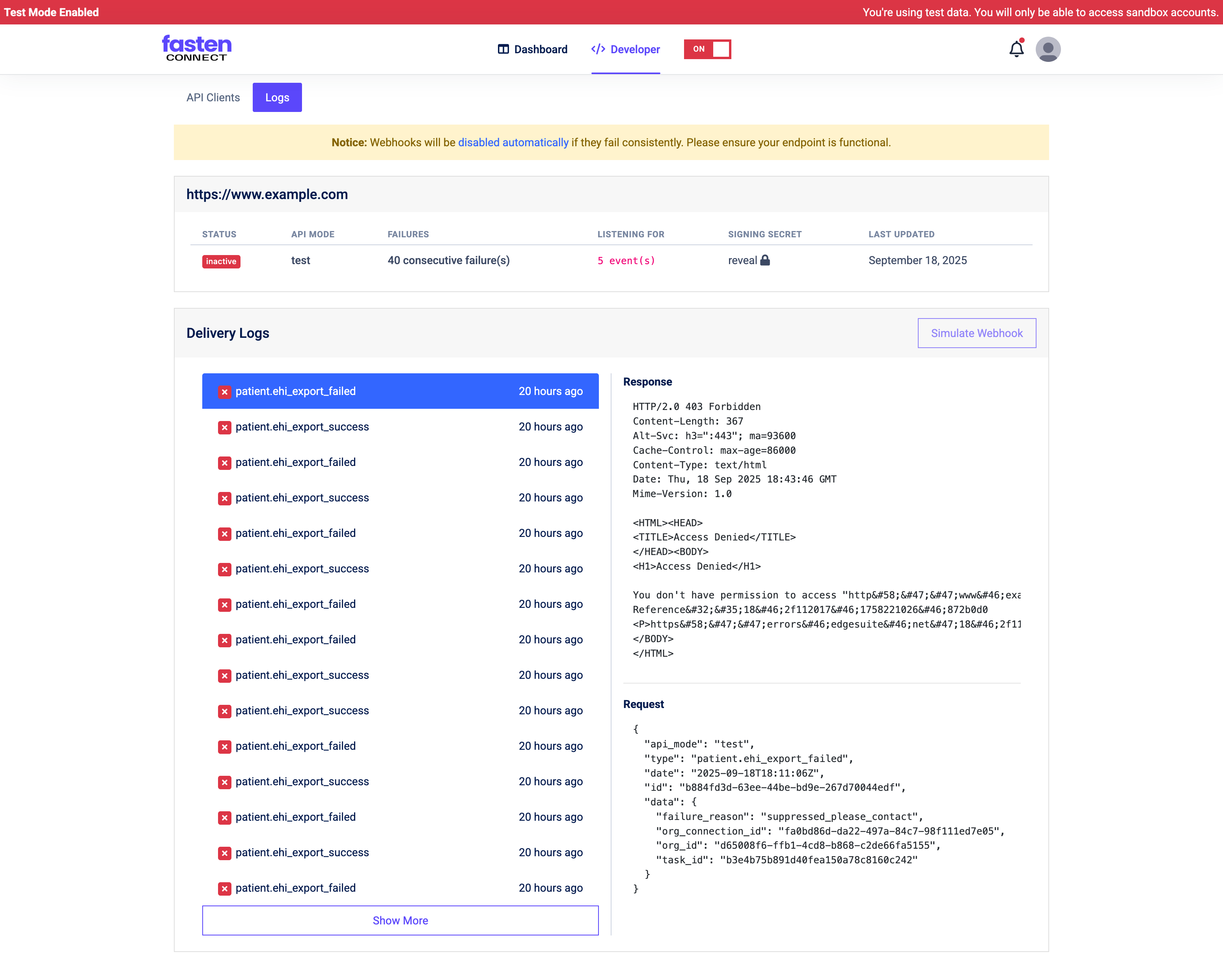 Each log entry includes:
* **Event Type** (e.g. `patient.ehi_export_success`, `patient.ehi_export_failed`)
* **Request Payload** – the JSON we sent to your endpoint
* **Response** – the HTTP status code and body your server returned
* **Timestamp** – when the delivery attempt was made
### How to Use Delivery Logs
1. Navigate to **Developer** tabg in the Fasten Connect dashboard.
2. Find the "Delivery Logs" column in the Webhooks table and click **View Logs** for the webhook you want to inspect.
3. Click an event to expand the **Request** and **Response** details.
* Use the **Request** JSON to confirm the payload structure matches what your endpoint expects.
* Check the **Response** for HTTP status codes (e.g., `200 OK` means success; `403 Forbidden` or `500 Server Error` indicate problems on your side).
3. If your endpoint repeatedly fails, Fasten will automatically disable the webhook after multiple consecutive errors. A yellow banner will warn you before this happens.
### Common Debugging Scenarios
* **403 Forbidden** – Your endpoint is rejecting the request. Confirm that your server allows Fasten’s IPs and that you’re validating the **Signing Secret** correctly.
* **Timeouts** – Ensure your endpoint responds within a reasonable timeframe. Consider acknowledging the event quickly (e.g., `200 OK`) and handling long-running jobs asynchronously.
* **Invalid Payload Handling** – Verify your endpoint can parse the JSON and handle optional fields that may or may not be present.
***
## 2. Webhook Simulator
The **Webhook Simulator** allows you to generate test events on demand, without waiting for a real patient workflow. This is useful for local development and automated testing.
The Webhook Simulator is only available in `test` mode. You cannot simulate payloads in `live` mode.
Each log entry includes:
* **Event Type** (e.g. `patient.ehi_export_success`, `patient.ehi_export_failed`)
* **Request Payload** – the JSON we sent to your endpoint
* **Response** – the HTTP status code and body your server returned
* **Timestamp** – when the delivery attempt was made
### How to Use Delivery Logs
1. Navigate to **Developer** tabg in the Fasten Connect dashboard.
2. Find the "Delivery Logs" column in the Webhooks table and click **View Logs** for the webhook you want to inspect.
3. Click an event to expand the **Request** and **Response** details.
* Use the **Request** JSON to confirm the payload structure matches what your endpoint expects.
* Check the **Response** for HTTP status codes (e.g., `200 OK` means success; `403 Forbidden` or `500 Server Error` indicate problems on your side).
3. If your endpoint repeatedly fails, Fasten will automatically disable the webhook after multiple consecutive errors. A yellow banner will warn you before this happens.
### Common Debugging Scenarios
* **403 Forbidden** – Your endpoint is rejecting the request. Confirm that your server allows Fasten’s IPs and that you’re validating the **Signing Secret** correctly.
* **Timeouts** – Ensure your endpoint responds within a reasonable timeframe. Consider acknowledging the event quickly (e.g., `200 OK`) and handling long-running jobs asynchronously.
* **Invalid Payload Handling** – Verify your endpoint can parse the JSON and handle optional fields that may or may not be present.
***
## 2. Webhook Simulator
The **Webhook Simulator** allows you to generate test events on demand, without waiting for a real patient workflow. This is useful for local development and automated testing.
The Webhook Simulator is only available in `test` mode. You cannot simulate payloads in `live` mode.
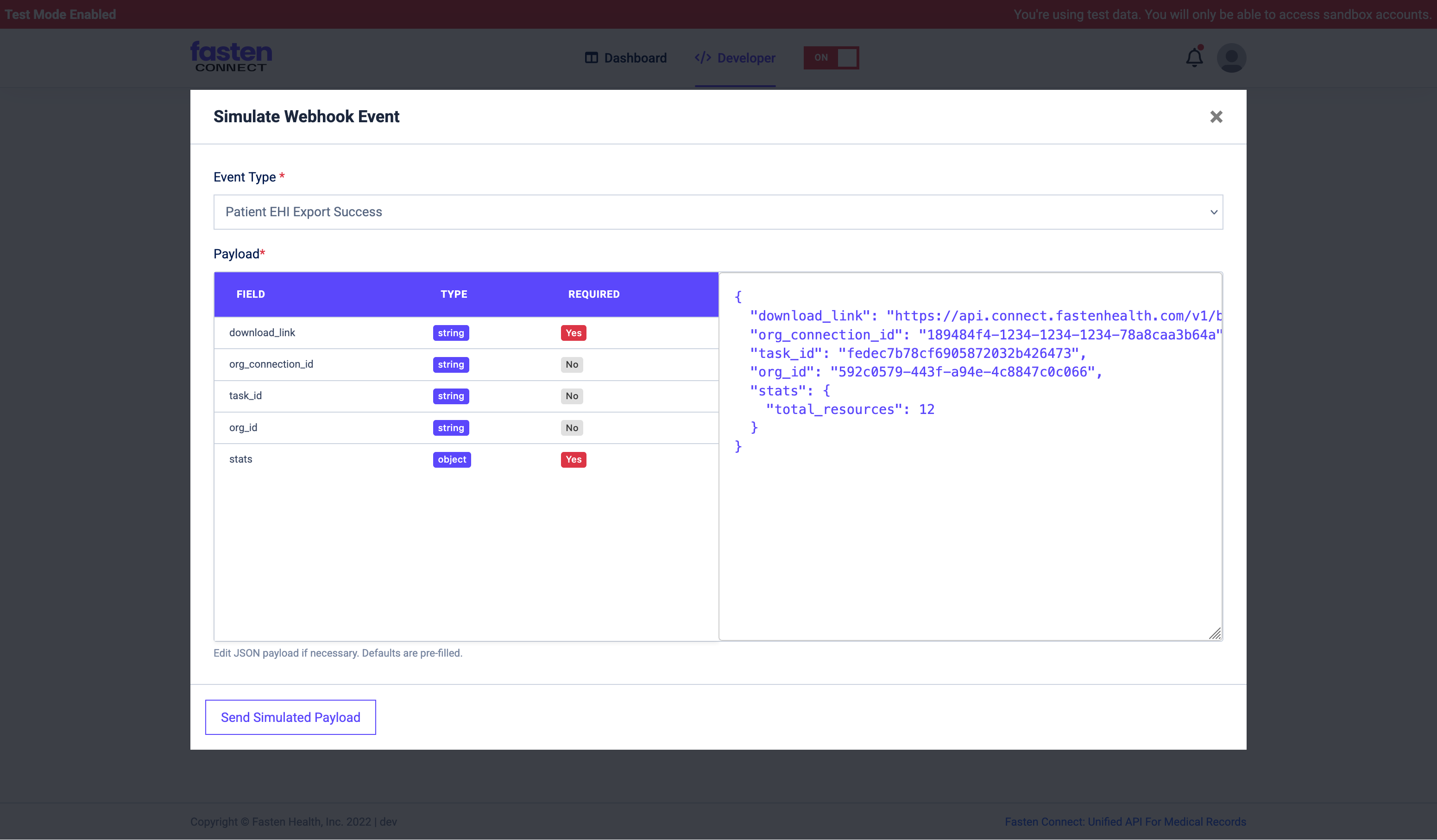 ### How to Use the Simulator
1. Navigate to **Developer** tabg in the Fasten Connect dashboard.
2. Find the "Delivery Logs" column in the Webhooks table and click **View Logs** for the webhook you want to simulate events with.
3. Click **Simulate Webhook**.
4. Select an **Event Type** from the dropdown (e.g., `Patient EHI Export Success`).
5. Review or edit the **Payload JSON**. Defaults are pre-filled with valid values, but you can change them to test edge cases (e.g., missing optional fields, large resource counts).
6. Click **Send Simulated Payload**.
* This will immediately POST the JSON to your registered webhook endpoint.
* The event will also appear in the **Delivery Logs**, just like real events. Events may take a few seconds to show up.
### Best Practices
* Use the simulator to test endpoint logic before going live.
* Test both **success** and **failure** event types to ensure your system handles retries and errors gracefully.
* Validate that your application parses required fields (like `download_links`) and ignores fields you don’t use.
***
## Summary
* **Delivery Logs** help you debug by showing exactly what Fasten sent and how your server responded.
* **Webhook Simulator** lets you test any event type instantly, with customizable payloads.
* Together, these tools ensure your webhook integration is reliable before moving into production.
***
If you encounter any issues or need further assistance, contact our support team at [support@fastenhealth.com](mailto:support@fastenhealth.com).
Built with [Mintlify](https://mintlify.com).
### How to Use the Simulator
1. Navigate to **Developer** tabg in the Fasten Connect dashboard.
2. Find the "Delivery Logs" column in the Webhooks table and click **View Logs** for the webhook you want to simulate events with.
3. Click **Simulate Webhook**.
4. Select an **Event Type** from the dropdown (e.g., `Patient EHI Export Success`).
5. Review or edit the **Payload JSON**. Defaults are pre-filled with valid values, but you can change them to test edge cases (e.g., missing optional fields, large resource counts).
6. Click **Send Simulated Payload**.
* This will immediately POST the JSON to your registered webhook endpoint.
* The event will also appear in the **Delivery Logs**, just like real events. Events may take a few seconds to show up.
### Best Practices
* Use the simulator to test endpoint logic before going live.
* Test both **success** and **failure** event types to ensure your system handles retries and errors gracefully.
* Validate that your application parses required fields (like `download_links`) and ignores fields you don’t use.
***
## Summary
* **Delivery Logs** help you debug by showing exactly what Fasten sent and how your server responded.
* **Webhook Simulator** lets you test any event type instantly, with customizable payloads.
* Together, these tools ensure your webhook integration is reliable before moving into production.
***
If you encounter any issues or need further assistance, contact our support team at [support@fastenhealth.com](mailto:support@fastenhealth.com).
Built with [Mintlify](https://mintlify.com).